

VIP Access Tokens (Soft tokens)
Currently, Countybank requires the use of a hard token to login to online banking. To improve your experience, we will no longer be using hard tokens, and a token will NOT be required at login. Instead, we are implementing “soft” tokens, where the code will be obtained from an app on each user’s device. This token is only required for Countybank Digital Banking users who are able to approve ACH and/or Wires. This “soft” token must use a token to submit or approve the transaction.
Token Installation and Set Up Steps
Only one token may be registered per user, so we recommend that you install this on your smart phone or tablet, which will allow you to initiate or approve these transactions anywhere, anytime.
Phone or Tablet Installation:
To download the VIP Access token, go to your device app store and search for VIP Access by Symantec VIP. It looks like a checkmark with a yellow circle around it. Install that, and then click on the app. It will open with a 6-digit recycling number in the center and the Credential ID at the top.
Desktop Installation:
If you prefer that the token be installed on a desktop workstation click this link: https://vip.symantec.com/
Once you have successfully installed the VIP Access token on the device of your choosing, login to
the Countybank Digital Banking site. If you are not able to receive a secure access code please contact your relationship manager or Customer Service at 800-726-8689. If you select email to receive your secure access code, please check your junk or spam folders if it does not come through in a few minutes.
Link Credential ID to Your User Profile:
Once you are logged in, each user, using their own login, needs to send the credential ID from their VIP Access token in a secure message. The credential ID appears above the recycling code. Once you have that follow these steps:
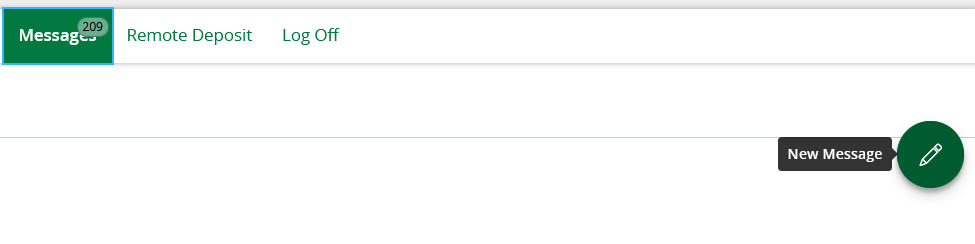
- Navigate to the Messages Menu Iten
- Click New Message
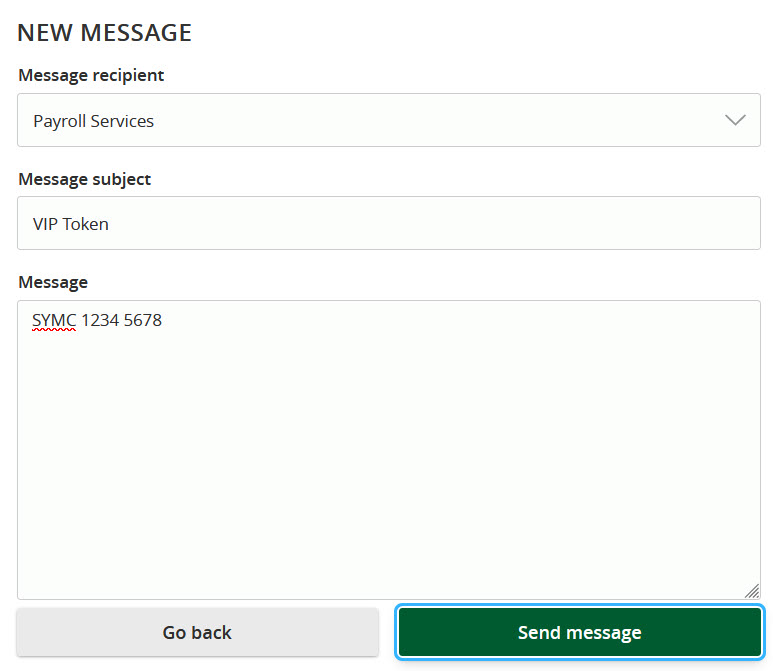
- Select Payroll Services as the message recipient
- Enter VIP Token in the subject line
- Enter the credential ID in the message text
Once we have each user’s Credential ID we will link them to each user’s login profile for use beginning 9/26/23.
First Time Use of Token:
Upon first use of the token it will prompt you to enter the code, then cycle through a code refresh and enter the second code.
If you encounter any problems with the use of the token, please contact Customer Service at 800-726-8689